
How to Set Up Zoom for Online Music Lessons
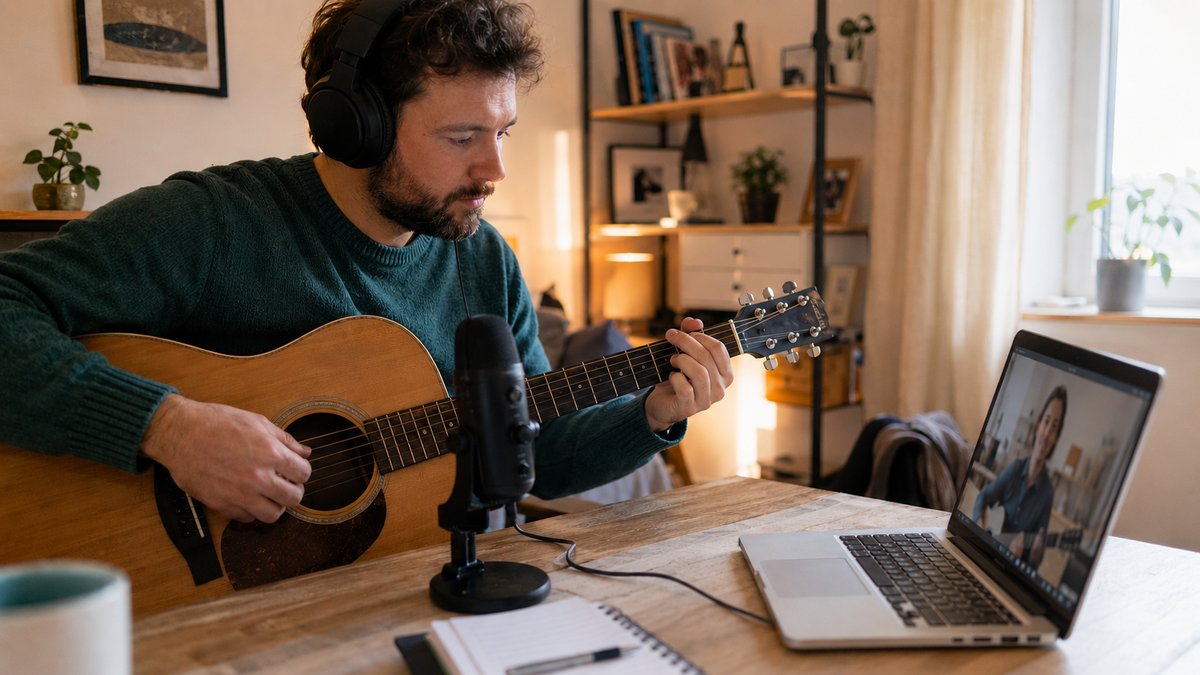
How to Set Up Zoom for Online Music Lessons: The Best Audio and Video Settings
If your online music lessons happen on Zoom, a few minutes of setup can be the difference between a frustrating, muffled lesson and one that sounds and feels almost like being in the same room. Zoom is built for talking, not music, by default it actively works against your instrument, smoothing out exactly the detail your teacher needs to hear. The good news: a handful of settings fix it, and you only have to set them once.
Here’s how to get Zoom dialed in for music, whether you’re a student setting up before your first lesson or a teacher who wants to send students a simple guide.
Use the Desktop App, Not the Browser
Before anything else, install the Zoom desktop app rather than joining from a web browser. The pro audio settings that matter for music only exist in the desktop app. Download it from zoom.us, sign in, and you’ll have access to everything below.
The One Setting That Matters Most: Original Sound
By default, Zoom applies noise suppression and automatic volume control designed for speech. For music, this is the enemy. It ducks your volume, cuts sustained notes, and treats your instrument like background noise.
The fix is Original Sound for Musicians. In the desktop app, open Settings → Audio, scroll down, and click “Music and Professional Audio.” Then check:
- Use original sound for musicians
- High-fidelity music mode
- Disable echo cancellation (only if you’re using headphones, see below)
Then, in each lesson, click “Original Sound for Musicians” in the top-left corner of the meeting window so it shows as on. Both you and your teacher should do this. This single change is the biggest upgrade you can make.
Turn Down Background Noise Suppression
In Settings → Audio, find “Background noise suppression” and set it to Low (or off). On higher settings, Zoom mistakes your instrument for noise and chops it up. Low keeps your playing intact.
Use Headphones and a Decent Microphone
Headphones are not optional for music lessons. They prevent the echo and feedback loop that happens when your teacher’s sound comes out of your speakers and back into your mic. Any wired earbuds work; over-ear headphones are even better.
If you can, use an external USB microphone instead of your laptop’s built-in mic. It’s the single biggest jump in how clearly your teacher hears you. But even built-in mics work far better once Original Sound is on.
Get Your Camera Angle Right
Your teacher needs to see what you’re doing, not just your face. Angle your camera so your hands and instrument are visible. For piano that means showing the keys and your hands, for guitar the fretboard, for winds and strings your posture and embouchure or bow arm. A laptop propped on a stack of books or a cheap phone tripod usually does the job. Good lighting helps too: face a window or lamp so you’re lit from the front, not silhouetted.
If Your Connection Is Slow or Lagging
If your video freezes, your audio cuts out, or your teacher says you’re breaking up, that’s almost always your internet connection rather than Zoom itself, and music suffers more than conversation when it stutters. Work through these in order:
- Use a wired connection. Plugging your computer into your router with an ethernet cable is the single biggest fix, far steadier than Wi-Fi.
- On Wi-Fi, get closer to the router. Move into the same room if you can, avoid walls between you and it, and use the 5 GHz network if your router offers one.
- Close everything else. Quit other apps, extra browser tabs, and anything downloading or backing up in the background.
- Pause other people’s usage. Ask anyone else at home to hold off on streaming, gaming, or big downloads during your lesson.
- Turn off your camera if audio is breaking up. Video uses the most bandwidth, and for music your sound matters far more than your picture.
- Restart your router. If it’s been running for weeks, unplug it for 30 seconds and plug it back in before your lesson.
- Check your speed. A quick test at fast.com confirms it. You only need a few Mbps of upload for a smooth lesson, and a stable connection matters more than a fast one.
- Last resort: use your phone’s hotspot. If your home internet is down, your phone’s mobile data can usually carry a lesson.
Zoom also shows a small network-quality indicator on your video, if those bars turn yellow or red, one of the steps above will usually clear it up.
If you’re brand new to online lessons, our walkthrough of what to expect in your first online music lesson covers what actually happens once you’re connected. And if your teacher uses a different platform, see our Google Meet setup guide or the full overview of the best video setup for online music lessons.
How to Find a Music Teacher on Tunelark
Every music teacher on Tunelark is vetted for credentials, teaching experience, and ability to teach effectively online. Our roster covers every common instrument plus voice, with teachers across classical, jazz, pop, contemporary, and beyond.
To find your match:
1. Browse our music teachers and filter by instrument, style, or student age.
2. Read bios carefully. Look for teachers whose described approach matches your goals.
3. Book a trial lesson with two or three teachers whose profiles resonate.
4. After each trial, notice: did the teacher feel curious about you and clear about what they’d work on next? Both signals matter more than credentials.
The best music teacher for you isn’t the most credentialed or the most popular. It’s the one whose teaching style and personality fit how you learn. Tunelark makes that match easier to find.
Frequently Asked Questions
What is the best Zoom setting for music lessons?
Turn on Original Sound for Musicians (Settings → Audio → Music and Professional Audio) and set background noise suppression to Low. This stops Zoom from compressing and ducking your instrument, which is the most common reason music sounds bad on Zoom.
Why does my instrument sound bad or cut out on Zoom?
By default Zoom treats sustained notes as background noise and lowers your volume. Enabling original sound and lowering noise suppression fixes it. Using headphones also prevents echo that can trigger the problem.
Do I need headphones for online music lessons?
Yes, headphones are strongly recommended. They prevent the echo and feedback loop that happens when your teacher’s audio plays through your speakers back into your microphone.
Does the Zoom browser version work for music lessons?
The browser version works, but the pro audio settings that matter for music (original sound, high-fidelity mode) are only available in the Zoom desktop app. Install the app for the best experience.
Why does my Zoom lesson keep freezing or lagging?
That’s usually your internet connection, not Zoom. Use a wired ethernet connection if you can, move closer to your Wi-Fi router, close other apps and downloads, and ask others at home to pause streaming. If it’s still rough, turn off your camera, video uses the most bandwidth, and for music your audio is what matters.
Keep reading
About Jennifer Heath
I'm Jennifer Heath, VP at Tunelark and a lifelong singer. I joined the company in 2020 and oversee much of what makes Tunelark work for our students and our teachers. That includes hiring, training, and supporting our instructors, customer and student support, marketing, and the day-to-day operations of the business.
I started voice lessons at age 7, sang with professional choirs that toured internationally through my teens, and performed solo at competitions and community events across Texas before stepping away in my twenties to study other interests, including business management. I haven't performed professionally in years, but I'll happily take the microphone at a karaoke night. Music has been in me every day of my life. Being able to spend the last six years working inside an online music education company, while traveling the world full-time, has been a perfect fit.
I believe deeply that music belongs in every life. For the self-expression, the discipline, the comfort, and the simple joy of it.
The Tunelark blog is where we share what we've learned about online music lessons: how to choose an instrument and a teacher, what to expect from your first lesson, how the major platforms compare, and how to keep music going through the busier seasons of life. Practical, honest writing you can act on.
Who we are
Tunelark provides virtual 1-on-1 music lessons to learners
of all ages.
We remove the barrier of geography and connect learners and teachers — wherever they are. Our growing community of vetted, experienced music educators have expertise in a wide variety of instruments, genres, and skill levels. We are passionate about connecting each student with the perfect instructor.

